Role Based Access for Support Software
Role-based access helps support teams control who can view, edit, and manage conversations, knowledge, AI settings, and customer data. Learn how the right permission structure improves collaboration, reduces mistakes, and keeps customer support organized as your business grows.
Plexvia Insight Team8 min read
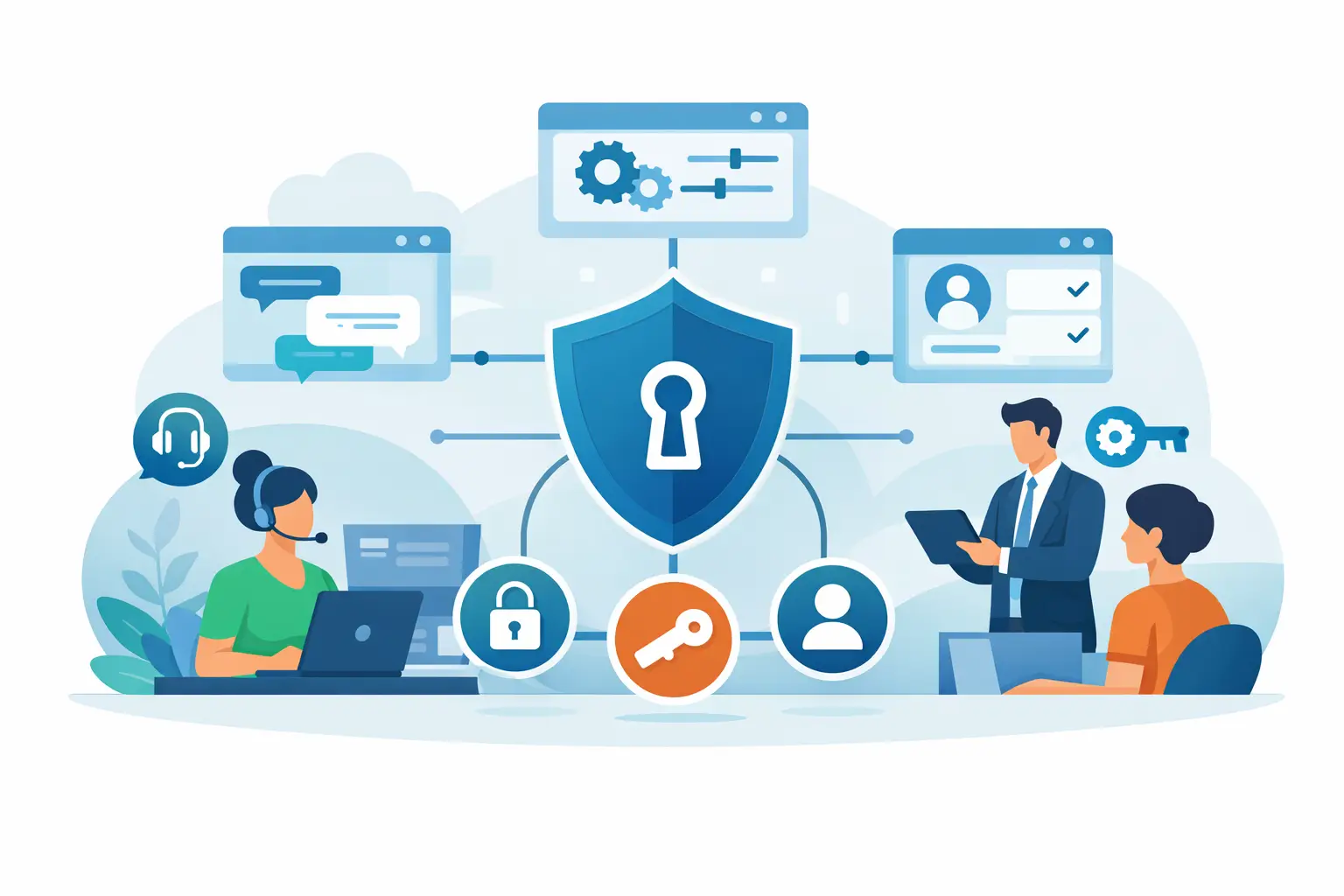
One person edits billing replies, another handles refunds, a front-desk teammate answers basic questions, and a manager jumps in when a conversation turns sensitive. That is exactly where role based access for support software stops being a nice extra and starts being part of daily operations. When everyone can see, change, and send everything, mistakes are not random. They are built into the workflow.
For small and mid-sized support teams, access control is often treated like an IT setting. In practice, it shapes response quality, speed, and trust. It decides who can answer customers, who can view private notes, who can approve AI behavior, and who can change the knowledge your team relies on. If your inbox includes order issues, appointment changes, pricing questions, and occasional complaints, the wrong access model creates confusion fast.
What role based access for support software actually does
Role-based access means people get permissions based on their job, not based on what they ask for one by one. A front-desk agent may be able to reply to website chats and email questions but not edit company knowledge. A supervisor may review escalations, manage saved replies, and access reporting. An owner or operations lead may control billing settings, AI rules, and team-wide permissions.
That structure sounds simple, but it solves several problems at once. First, it limits accidental changes. Second, it reduces hesitation because teammates know what they are supposed to handle. Third, it creates cleaner handoffs when an issue needs a manager or specialist. The goal is not to lock people out for the sake of control. The goal is to give each person enough access to do good work without exposing the team to avoidable risk.
In support software, permissions usually touch five areas: conversations, customer data, internal collaboration, knowledge sources, and automation settings. If even one of those is too open, the system gets messy. If all of them are too restricted, work slows down. Good access design sits in the middle.
Why support teams feel the pain first
Support work is fast, public, and hard to undo. A mistaken reply can reach a customer in seconds. A private note shown to the wrong person can create internal tension. An inaccurate AI draft built from unapproved information can spread the same mistake across dozens of conversations before anyone notices.
That is why role based access for support software matters more than it might in other business tools. Customer communication tools are where brand tone, policy, and personal judgment meet. Your team is not just moving tickets along. They are making promises, explaining policies, and protecting customer trust.
A multi-location business feels this even more. One location may need access to local appointment details, while leadership needs a full view across teams. A junior teammate should be able to answer common questions about hours or availability without seeing every internal note or changing escalation rules. The more locations, channels, and teammates you add, the more important permission design becomes.
Where teams usually get access wrong
The most common mistake is giving broad admin access because it feels easier at setup. That often happens when a business is growing quickly and just wants everyone operational. But broad access creates hidden costs. People change settings they did not realize were global. Knowledge gets edited without review. AI prompts or workflows shift in ways no one can trace easily.
The second mistake is building access around people instead of responsibilities. If permissions are customized for each individual, they become hard to maintain. When someone changes roles, moves locations, or covers another shift, nobody is fully sure what they can still see or do. Role-based access works best when it follows repeatable job functions.
The third mistake is forgetting that AI needs permissions too. If your platform drafts replies, suggests answers, or responds through chat, the system should only work from approved sources and actions. Permission-aware AI matters because the model should not pull from knowledge a user cannot access, and it should not take actions that exceed the team member's authority.
The permissions that matter most
Not every permission carries the same weight. Some have a direct effect on customer trust and operational control.
Conversation permissions are the most visible. Who can reply, close, assign, reopen, or escalate? If everyone can do all of that, ownership gets blurry. If too few people can act, queues build up.
Knowledge permissions are often underestimated. Who can create or edit approved answers, policies, and source content? If your AI drafts from business knowledge, this becomes a core governance issue, not just a content issue.
Private collaboration permissions also matter. Internal notes, teammate mentions, and handoff comments should be available to the right people, but not necessarily to every user across every team or location.
Then there are automation and governance permissions. Who can change routing rules, escalation paths, AI settings, or approval workflows? These controls shape how support runs behind the scenes. They should usually sit with experienced operators, not every daily responder.
How to set up access without overcomplicating it
Start with your actual workflow, not with a long permission matrix. Look at the kinds of conversations your team handles in a normal week. Who answers order questions? Who handles refunds? Who deals with complaints, legal threats, or payment disputes? Who updates the source material when policies change?
From there, group work into roles. For many businesses, three to five roles are enough: frontline responder, senior responder, manager, knowledge editor, and admin. Some teams combine a few of those. The point is clarity. If a role is hard to describe in one sentence, it is probably too custom.
Next, define what each role can view, edit, approve, and send. Viewing and editing should be separate decisions. A teammate may need to see a knowledge article but not change it. A supervisor may review AI-generated drafts without being the person who manages the AI settings.
After that, test edge cases. What happens when a sensitive billing issue comes in through website chat? Can the frontline teammate hand it off without seeing restricted financial details? Can a manager step in quickly? Can the AI draft a helpful response without making policy decisions it should not make? These scenarios reveal whether your roles match real work.
Access control and AI should work together
Many teams now use support tools that draft replies, recommend answers, and surface internal knowledge. That changes the access conversation. It is no longer just about what humans can do manually. It is about what the system can assist with, and under whose rules.
A useful setup lets AI help broadly while keeping authority narrow. For example, a frontline agent can receive a draft for a return request based on approved policy, but a refund exception still routes to a manager. A receptionist can use AI to answer common appointment questions, but account changes require a different permission level. That balance keeps speed high without giving automation too much freedom.
This is where a platform like Plexvia fits naturally for teams that want support from AI without losing operational control. The practical advantage is not just faster drafting. It is having AI that works from approved knowledge, respects permissions, and supports handoffs when a human decision is needed.
What good role design looks like in real life
Imagine a home services company with five locations. Website chat covers pricing, scheduling, service areas, and occasional complaints. The front-desk team can answer common questions, schedule standard appointments, and use AI-drafted replies based on approved knowledge. They can add private notes and flag issues, but they cannot edit company policies or issue credits.
Location managers can review escalations, handle unhappy customers, approve exceptions, and see reporting for their site. An operations lead manages shared knowledge, system-wide automations, and AI guardrails across locations. The owner keeps full administrative access but does not need to touch day-to-day conversations.
That setup is not fancy. It is clear. And clear systems usually outperform complicated ones because people trust them and follow them.
Choosing support software with role-based access in mind
If you are evaluating tools, do not just ask whether role-based access exists. Ask how granular it is, how easy it is to maintain, and whether it covers AI, knowledge, and collaboration - not just inbox visibility.
Also ask how the system handles growth. Can you separate permissions by team or location? Can you restrict sensitive actions without slowing down common replies? Can managers see what they need without becoming bottlenecks for everything?
The best setup will feel almost invisible in daily use. Teammates open the workspace, see the conversations and tools relevant to their role, and get on with the job. Managers have control where it matters. Customers get faster, more consistent answers. And the business is less dependent on memory, workarounds, or crossed fingers.
If your support system feels chaotic, the answer may not be more training or more people. It may be giving the right people the right level of access - and no more than that.


